How to apply to a brand campaign
Aktualizované 25. novembra 2026
Tento článok ešte nie je preložený do vášho jazyka – zobrazuje sa v angličtine.
Originál tohto článku sa od prekladu zmenil – preklad môže byť zastaraný. Prečítať originál
Na tejto stránke
To apply, open "Campaigns", click "Apply" on the campaign card, choose a "Placement format" and click "Send". The brand sees your application and your page's numbers and decides whether to take you.
Apply
- Open "Campaigns". If you have several pages, pick the one you want with the button showing its name — the application goes out on behalf of that page.
- Read the campaign card — what it says is explained below.
- Click "Apply".
- Under "Placement format" choose "Post" — a post, story or video on your platform — or "Newsletter letter" if you want to feature the brand in a letter to your subscribers.
- If you like, add a line or two in the "Tell the brand why you fit (optional)" field.
- Click "Send".
You will see "Your application has been sent.", and the card will show "Your application: Sent".
People with the "Owner", "Administrator" or "Editor" role on the page can apply. A page applies to a campaign once: you cannot withdraw the application or change its format later.
What the card tells you
- Title, amount and spots. If the brand set a budget you see the amount; otherwise the campaign type: "Barter", "Paid" or "Event". "Spots" is how many creators the brand plans to take.
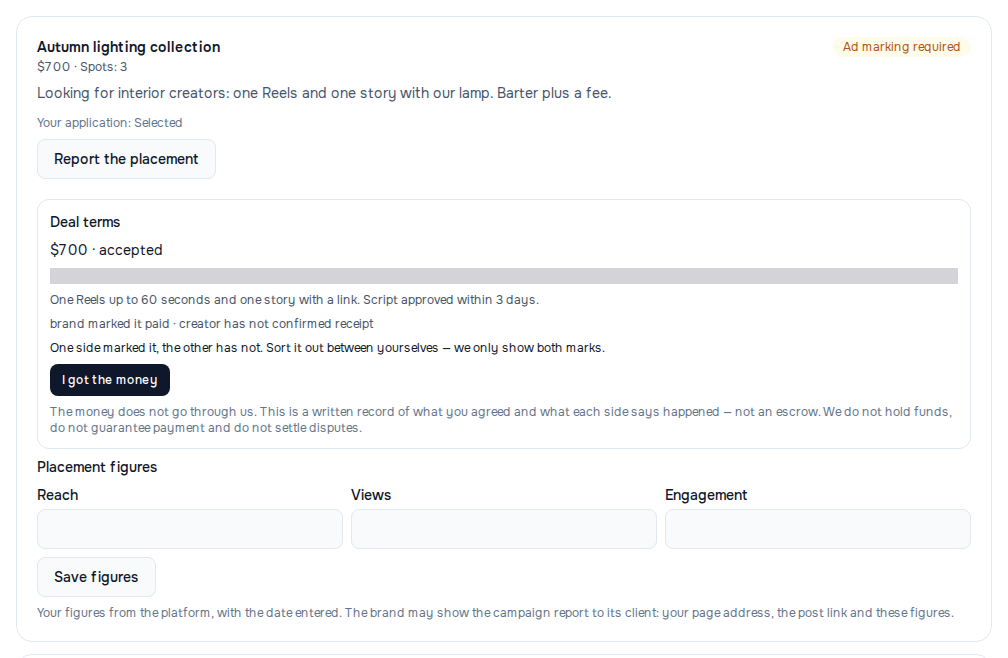
- "Ad marking required" — a placement for this campaign is an ad and has to be labelled. How — in how to report a placement.
- "Usage rights: …" — where else the brand may show your post besides your platform, and for how long. For example: "The brand may show the creator's post in its own social media and in advertising for 30 days from publication". If the line is missing, the brand gets no such rights: the post stays only with you. Once the brand has published the campaign it cannot change these rights; the same line appears again in the deal terms.
- "The draft is approved by the brand before publishing" — the brand wants to see what you will publish in advance, see how to get a draft approved.
- "If you're selected, the brand will ask for a shipping address for the product." — a barter where the brand ships you a product, see shipping address below.
Application statuses
The status appears on the card after "Your application:". If you chose a newsletter letter, "Newsletter letter" appears next to it.
| Status | Meaning |
|---|---|
| "Sent" | The brand has not decided yet. |
| "Selected" | The brand took you. The card now shows the deal terms and a "Report the placement" button, and if the brand approves drafts, a "Draft" block comes first and you can report once the draft is approved. |
| "Not selected" | The brand said no. This is final: you cannot apply to the same campaign again. |
| "Completed" | The brand closed your placement as done. |
| "Invitation" | There is no "Your application" line: the card says the brand invited you and shows "Accept" and "Decline". The brand found you in the directory, see the brand directory. |
| "Declined" | You declined the invitation. |
No email is sent when the brand decides — the status changes on the card only. We email you about an offer for your package (see below) and remind you of placement deadlines, see placement deadline and reminders.
Package offer
A brand can offer a deal straight on one of your packages — in a paid campaign. Instead of a regular invitation, the campaign card then shows "Offer for your package …" with the price, the publishing deadline and what is included — exactly as the package read when the offer was made. Below it: "Money goes directly between you; WŬMÙ does not hold it." and the "How brands see you" line. You also get one email per campaign: if the brand withdraws the offer and sends it again, there is no second email. An offer in a campaign that has not started yet shows up right away.
- "Accept terms" — you are selected for the campaign right away ("Selected") and the deal terms are accepted. The publishing deadline is today's date in UTC plus the package's days: a 7-day package accepted on 25 November is due on 2 December. Deadline reminders follow it.
- "Decline" — the status becomes "Declined", and the deal is declined too.
Editing or deleting the package later does not change an offer already sent or a deal already accepted. An offer for a deleted package stays valid — you can still accept or decline it. The brand can withdraw the offer until you answer; the card then goes back to normal.
Only the page owner can accept the terms — they then handle the deal, draft and report. Anyone who can edit the page can decline. If the campaign has closed or ended in the meantime, the offer can no longer be accepted, only declined.
What next, if you are selected
- If the brand approves drafts, send a draft and wait for approval.
- Accept or decline the deal terms once the brand sets them.
- Publish and report the placement. If the format is a letter, send a campaign newsletter letter.
The draft, the terms and the report are handled by whoever applied — or by the page owner, if it was an invitation.
Shipping address
In a barter campaign the brand may ask for an address to ship you the product. Then, once you are selected, the campaign card shows a "Shipping address" block.
- Fill in "Recipient", "Country", "City" and "Street and building" — they are required. "Phone for the courier", "Region", "Postal code", "Apartment or office" and "Note for the courier" are optional. The field order is the same for every country.
- Tick the consent "Share this address with … to ship the product for the campaign “…”. The address will be erased 30 days after completion." Without the tick, "Save address" stays disabled.
- Click "Save address".
You will see "Address saved", and the block shows the address, the date it was shared with the brand and when it will be erased. While you are not marked as done and the campaign is open, you can change the address with "Edit" — the consent is given again. When the brand marks the product as shipped, the block shows "Shipped on …" and the tracking number if the brand added one.
Only you and this campaign's brand see the address. Other members of your page and the WŬMÙ administration do not, and it is not in the brand's report or exports. The address is entered and changed by whoever applied to the campaign.
The address is erased automatically:
- right away, if the brand rejects the application;
- 30 days after the brand marks the placement as done;
- 30 days after the campaign closes, if the placement was never marked as done.
You can erase it earlier at any time, even after shipping: "Erase address" and confirm. The brand will see that you erased the address; if the product has not shipped yet, sort it out with them in messages.
What the brand sees
Your page's name with a link to it, the page's views over 30 days, the format, the text of your application and a line about your past deals — the same one shown at the top of "Campaigns" under "How brands see you". The brand does not see your email or phone.
How brands see you
At the top of "Campaigns" there is a line about this page's deals, for example "Deals completed: 8 · on time: 7 of 8 · latest: October 2026". The brand sees it in your application, and in the brand directory if you are listed there. It cannot be hidden.
The line holds facts only — no ratings, reviews, brand names or amounts:
- "Deals completed" — how many of your placements brands closed as done.
- "on time: K of M" — how many of those were posted before the deadline. The moment of posting is when you first attached the link to the post, or when the campaign newsletter letter was queued for sending. A second link does not move it. If the letter went back to drafts and there is no link to the post, the moment is cleared and recorded again on the next send.
- "no deadline set" — completed deals that had no deadline or no recorded moment of posting: we record it since this line appeared, so earlier placements do not have it.
- "latest" — the month of the latest completed deal.
- "past deadline, not posted" — how many times you were selected, the deadline passed and nothing was posted. It goes away as soon as you post, and also when the brand turns the application down, marks it completed or closes the campaign.
Until you have completed deals, the line says "No completed deals yet" — plus "past deadline, not posted" if there is any. Applications the brand turned down are not counted.
Why some campaigns are locked
Instead of "Apply", such a card shows a lock and the reason — one or several, separated by dots:
- "Different niche" — the brand wants creators in a particular niche, and the "Niche" field in your media kit says something else or is empty. A partial match counts: the brand writes "beauty", you write "beauty and skincare", and that fits. How to fill it in — how to build a media kit.
- "Another country" — the brand wants creators from particular countries, and your page does not meet that condition.
- "Not enough views yet" — your page had fewer views over the last 30 days than the brand asks for.
We show these campaigns instead of hiding them, so you can see what to aim for. Once the condition is met, the lock turns into an "Apply" button.
The list shows open campaigns, newest first. A campaign where you were selected stays in the list even after the brand closes it, so you can still add the placement figures. Other closed campaigns drop out of the list.
If something went wrong
- "No open campaigns right now." — brands have not published anything yet. Check back later.
- "You have already applied to this campaign." — this page already has an application, for example sent from another tab or by another member of the page. Reload the page — the card will show its status.
- "Could not send the application." — your role on this page is "Viewer"; the page is blocked by the administration; the campaign has just closed; or the page stopped meeting the conditions while the card was open — for example, its 30-day views went down. Reload the page: if the campaign is still open, you will see the reason.
- "This offer is no longer current: it was answered or withdrawn." — the package offer was answered from another tab or by another member of the page, or the brand withdrew it. The list refreshes on its own.
- "Only the page owner can accept the terms — they handle the deal from here. Anyone who can edit the page can decline." — you are a member of the page, not its owner: ask the owner to accept the offer.
- "The campaign isn’t published or has already ended." — the brand closed the campaign while the offer was waiting. The list refreshes on its own.
- "Couldn’t answer the offer." — a connection problem, or the page is blocked by the administration: a blocked page can decline but not accept. Check your connection and try again.
- "Check the address: recipient, country, city and street are required." — one of the required fields is empty or contains only spaces.
- "The address can no longer be changed: the application isn't selected or the campaign is closed." — the brand rejected the application, marked the placement as done or closed the campaign while the form was open. You can still erase the address.
- "Couldn't load the address." — click "Retry"; if it keeps happening, check your connection.
- "Could not load campaigns." — reload the tab; if it keeps happening, check your connection.
Pomohol vám tento článok?
Nenašli ste odpoveď?
Pomôže vám náš tím podpory – napíšte nám do chatu.