Talents — cards for the creators you are talking to
更新於 2026年11月24日
本文章尚未翻譯成您的語言,現以英文顯示。
本頁內容
To add a card for a creator, open "Pages & access", click "Add" in the "Talents" block, fill in "Name" and click "Save". The other fields are optional. The person does not need a page or even a WŬMÙ account.
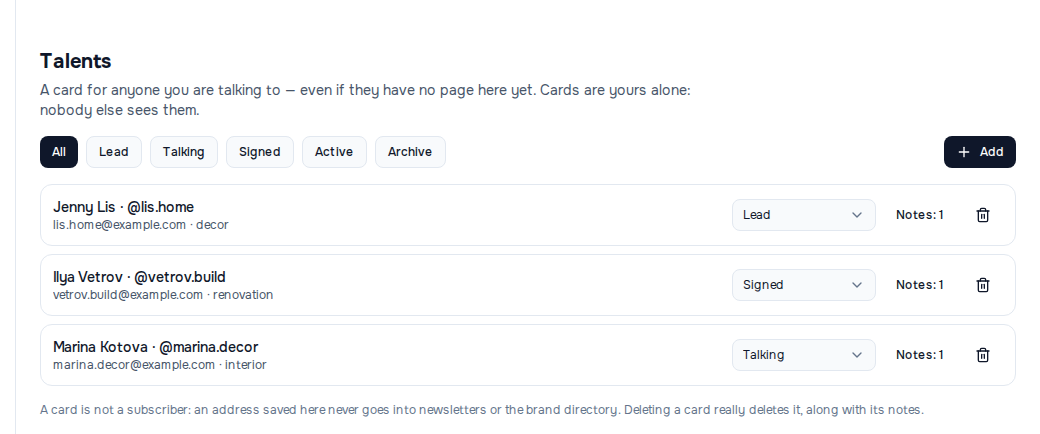
Cards are yours alone — neither your agency colleagues nor the creator see them.
Add a card
- Open "Pages & access" and scroll down to "Talents".
- Click "Add".
- Fill in "Name". Optionally add "Nickname on social", "Email", "Phone", "Telegram" and "Niche".
- Click "Save".
The card appears in the list at the "Lead" stage. The row shows the name and nickname, and below them the contacts and niche, or "no contacts saved".
New and recently changed cards are at the top.
Stages
The stage answers "where are we now" and is changed with the "Stage" list right in the card's row:
| Stage | When to use it |
|---|---|
| "Lead" | you found the person but have not been in touch yet |
| "Talking" | you are writing to each other and discussing terms |
| "Signed" | you have an agreement |
| "Active" | you are working with the creator |
| "Archive" | the work is over or did not happen |
The buttons above the list — "All", "Lead", "Talking" and the rest — show only the cards at that stage.
Notes
Notes are a feed, not a single field: a new one goes on top, and earlier ones stay with their date.
- Click "Notes: N" in the card's row.
- Type into "What was agreed, what to do next".
- Click "Add note".
Write down what you will forget in a month: what was agreed, what the person does not want, when to come back. A note cannot be edited or deleted.
Link a card to the creator's page
Once the creator has a page and gives you access to it, you can link the card to the page.
If the email in the card matches the email of the account that owns one of the pages in your roster, the card shows "Looks like the page «…» belongs to this person". Click "Link" and the page title appears next to the name in the card.
Cards are never linked to pages on their own: only your click links them. And only to a page you have access to — the creator grants that.
What to know about this data
- A card is not a subscriber. An email from a card never goes into newsletters or the creator directory for brands. It is your contact, not the person's consent to receive emails.
- Deleting is for real. The "Delete" bin icon in a card's row deletes the card together with its notes after you confirm. It cannot be restored.
- Up to 500 cards per account. The block is for working with people by name, not for storing bought lists.
If something went wrong
- "Save" does nothing — "Name" is empty.
- "Card limit reached" — you already have 500 cards. Delete the ones you no longer need, for example from "Archive".
- "You have no access to that page — the author has to grant it" — you lost access to the page before you clicked "Link". Ask the creator to invite you again.
- No "Looks like the page … belongs to this person" hint — the card has no email, the email does not match the page owner's, or the page is not in your roster.
- "Could not load the cards" or "Could not save" — reload the page and try again.