How to change several pages at once and undo the change
Жаңартылды: 2026 ж. 24 қараша
Бұл мақала әлі сіздің тіліңізге аударылмаған — ағылшын тілінде көрсетілуде.
One change across several pages is made in "Pages & access", in the "Bulk changes" block: pick the pages, choose what to do, click "What will change", check the list, and only then click "Apply to N pages".
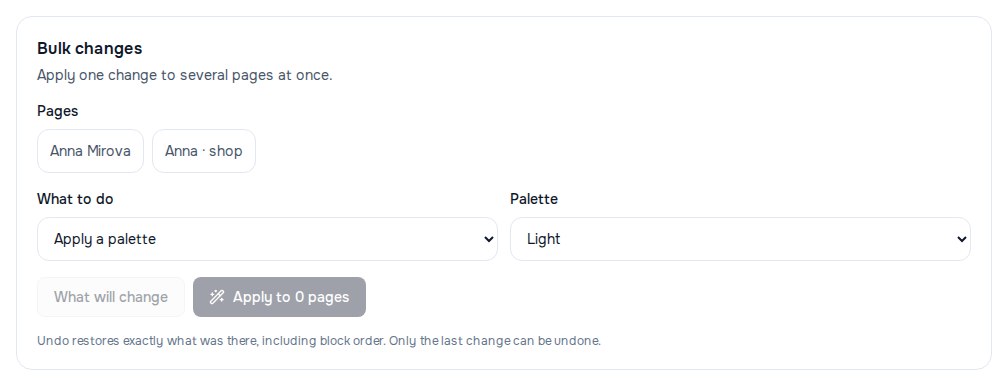
The block appears when you have at least two pages you can edit: your own, or someone else's where you are an "Administrator" or "Editor". Pages where you are a "Viewer" are not in it.
What you can do
| "What to do" | What happens |
|---|---|
| "Apply a palette" | the pages switch to the palette chosen under "Palette": "Light", "Dark", "Sand", "Mint", "Ink" or "Berry" |
| "Remove a block type" | every block of the chosen type is deleted from the pages — on the main page and on all sub-pages of the address |
| "Set the signature" | your signature replaces "Made with WŬMÙ" at the bottom of the pages, see Your own signature instead of ours |
The "Block type" list for "Remove a block type" has three types, labelled with internal words: tip_jar — "Tips", contact_form — "Contact form", photo_carousel — "Photo gallery".
Apply a change
- Open "Pages & access" and find the "Bulk changes" block.
- Under "Pages", click the titles of the pages you want — selected ones are highlighted.
- Under "What to do", choose the action and, next to it, the palette, block type or signature text.
- Click "What will change". "This is what happens" appears with a line per page: "palette will change", "2 blocks will be removed", "signature will be set" or "signature will be cleared".
- Check the list. If every line is zero, it says "Nothing to change on the selected pages." at the bottom.
- Click "Apply to N pages".
You will see "Applied to N pages." and the page selection is cleared.
The apply button only becomes active after "What will change". If you change the pages or the action after the preview, the preview disappears — click "What will change" again. This is deliberate: a mistake in a bulk edit spoils many pages at once, and the creator notices it before you do.
You can apply a change both to your own pages and to other people's where you are an administrator or editor. We do not notify the creators — tell them yourself.
Undo the last change
- Click "Undo last" in the same block. The button is shown if you have an applied change that has not been undone yet.
- Confirm: "Undo the last change on N pages?"
You will see "The change has been undone." The pages go back to what they were before the operation — including the order of blocks.
What to know:
- The button undoes the most recent of your changes that has not been undone yet, and each one only once. After an undo it may offer to undo the change made before it as well. Click it only if you want that one back too.
- Pages you lost access to after the operation are skipped.
- The button lives in the "Bulk changes" block. If you are left with fewer than two pages you can edit — you left a page or your role was lowered — the block disappears together with it, and the change can no longer be undone.
If something went wrong
- No "Bulk changes" block — you have fewer than two pages you can edit.
- "Apply to N pages" cannot be clicked — click "What will change" first.
- "Could not run the operation." — the address in "Signature link" does not start with
http://orhttps://, or you can no longer edit any of the selected pages. Check and try again. - "Could not undo the change." — the change has already been undone, for example in another tab. Reload the page.