How to apply to a brand campaign
Updated November 24, 2026
On this page
To apply, open "Campaigns", click "Apply" on the campaign card, choose a "Placement format" and click "Send". The brand sees your application and your page's numbers and decides whether to take you.
Apply
- Open "Campaigns". If you have several pages, pick the one you want with the button showing its name — the application goes out on behalf of that page.
- Read the campaign card — what it says is explained below.
- Click "Apply".
- Under "Placement format" choose "Post" — a post, story or video on your platform — or "Newsletter letter" if you want to feature the brand in a letter to your subscribers.
- If you like, add a line or two in the "Tell the brand why you fit (optional)" field.
- Click "Send".
You will see "Your application has been sent.", and the card will show "Your application: Sent".
People with the "Owner", "Administrator" or "Editor" role on the page can apply. A page applies to a campaign once: you cannot withdraw the application or change its format later.
What the card tells you
- Title, amount and spots. If the brand set a budget you see the amount; otherwise the campaign type: "Barter", "Paid" or "Event". "Spots" is how many creators the brand plans to take.
- "Ad marking required" — a placement for this campaign is an ad and has to be labelled. How — in how to report a placement.
- "Usage rights: …" — where else the brand may show your post besides your platform, and for how long. For example: "The brand may show the creator's post in its own social media and in advertising for 30 days from publication". If the line is missing, the brand gets no such rights: the post stays only with you. Once the brand has published the campaign it cannot change these rights; the same line appears again in the deal terms.
- "The draft is approved by the brand before publishing" — the brand wants to see what you will publish in advance, see how to get a draft approved.
Application statuses
The status appears on the card after "Your application:". If you chose a newsletter letter, "Newsletter letter" appears next to it.
| Status | Meaning |
|---|---|
| "Sent" | The brand has not decided yet. |
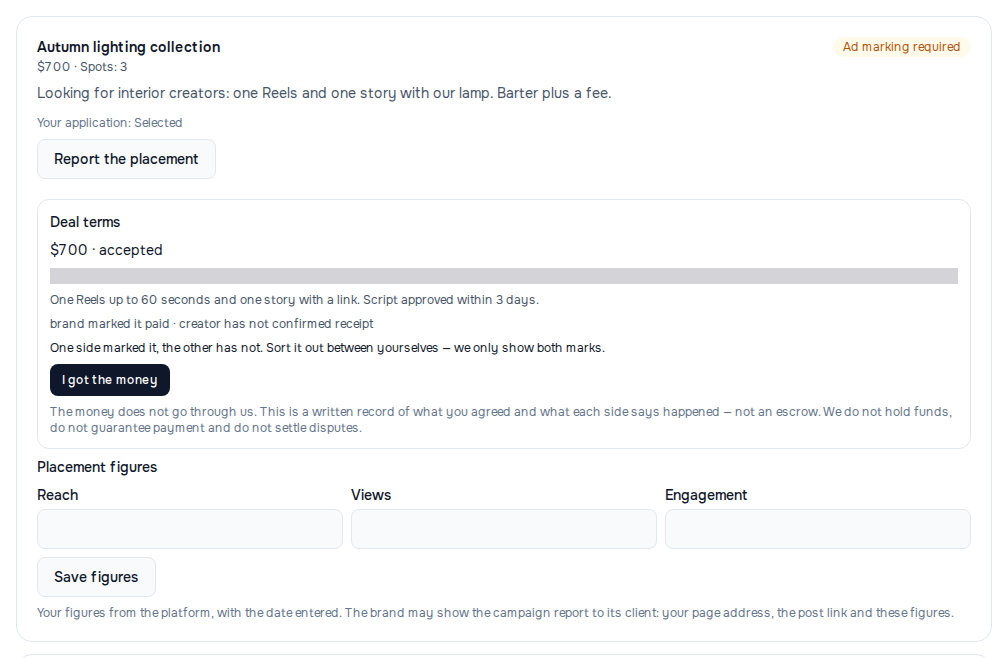
| "Selected" | The brand took you. The card now shows the deal terms and a "Report the placement" button, and if the brand approves drafts, a "Draft" block comes first and you can report once the draft is approved. |
| "Not selected" | The brand said no. This is final: you cannot apply to the same campaign again. |
| "Completed" | The brand closed your placement as done. |
| "Invitation" | There is no "Your application" line: the card says the brand invited you and shows "Accept" and "Decline". The brand found you in the directory, see the brand directory. |
| "Declined" | You declined the invitation. |
No email is sent when the brand decides — the status changes on the card only. The only emails we send are placement deadline reminders, see placement deadline and reminders.
What next, if you are selected
- If the brand approves drafts, send a draft and wait for approval.
- Accept or decline the deal terms once the brand sets them.
- Publish and report the placement. If the format is a letter, send a campaign newsletter letter.
The draft, the terms and the report are handled by whoever applied — or by the page owner, if it was an invitation.
What the brand sees
Your page's name with a link to it, the page's views over 30 days, the format, the text of your application and a line about your past deals — the same one shown at the top of "Campaigns" under "How brands see you". The brand does not see your email or phone.
How brands see you
At the top of "Campaigns" there is a line about this page's deals, for example "Deals completed: 8 · on time: 7 of 8 · latest: October 2026". The brand sees it in your application, and in the brand directory if you are listed there. It cannot be hidden.
The line holds facts only — no ratings, reviews, brand names or amounts:
- "Deals completed" — how many of your placements brands closed as done.
- "on time: K of M" — how many of those were posted before the deadline. The moment of posting is when you first attached the link to the post, or when the campaign newsletter letter was queued for sending. A second link does not move it. If the letter went back to drafts and there is no link to the post, the moment is cleared and recorded again on the next send.
- "no deadline set" — completed deals that had no deadline or no recorded moment of posting: we record it since this line appeared, so earlier placements do not have it.
- "latest" — the month of the latest completed deal.
- "past deadline, not posted" — how many times you were selected, the deadline passed and nothing was posted. It goes away as soon as you post, and also when the brand turns the application down, marks it completed or closes the campaign.
Until you have completed deals, the line says "No completed deals yet" — plus "past deadline, not posted" if there is any. Applications the brand turned down are not counted.
Why some campaigns are locked
Instead of "Apply", such a card shows a lock and the reason — one or several, separated by dots:
- "Different niche" — the brand wants creators in a particular niche, and the "Niche" field in your media kit says something else or is empty. A partial match counts: the brand writes "beauty", you write "beauty and skincare", and that fits. How to fill it in — how to build a media kit.
- "Another country" — the brand wants creators from particular countries, and your page does not meet that condition.
- "Not enough views yet" — your page had fewer views over the last 30 days than the brand asks for.
We show these campaigns instead of hiding them, so you can see what to aim for. Once the condition is met, the lock turns into an "Apply" button.
The list shows open campaigns, newest first. A campaign where you were selected stays in the list even after the brand closes it, so you can still add the placement figures. Other closed campaigns drop out of the list.
If something went wrong
- "No open campaigns right now." — brands have not published anything yet. Check back later.
- "You have already applied to this campaign." — this page already has an application, for example sent from another tab or by another member of the page. Reload the page — the card will show its status.
- "Could not send the application." — your role on this page is "Viewer"; the page is blocked by the administration; the campaign has just closed; or the page stopped meeting the conditions while the card was open — for example, its 30-day views went down. Reload the page: if the campaign is still open, you will see the reason.
- "Could not load campaigns." — reload the tab; if it keeps happening, check your connection.
Did this article help?
Didn't find an answer?
Our support team will help — write to us in the chat.