How to plan videos and posts and get ideas from AI
Updated November 22, 2026
On this page
Video and post ideas, their scripts and a plan by date live in the "Content" section. Write an idea in the "Your own idea in one line" field and click "Add" — or click "Suggest", and the assistant offers five ideas with scripts made for your page.
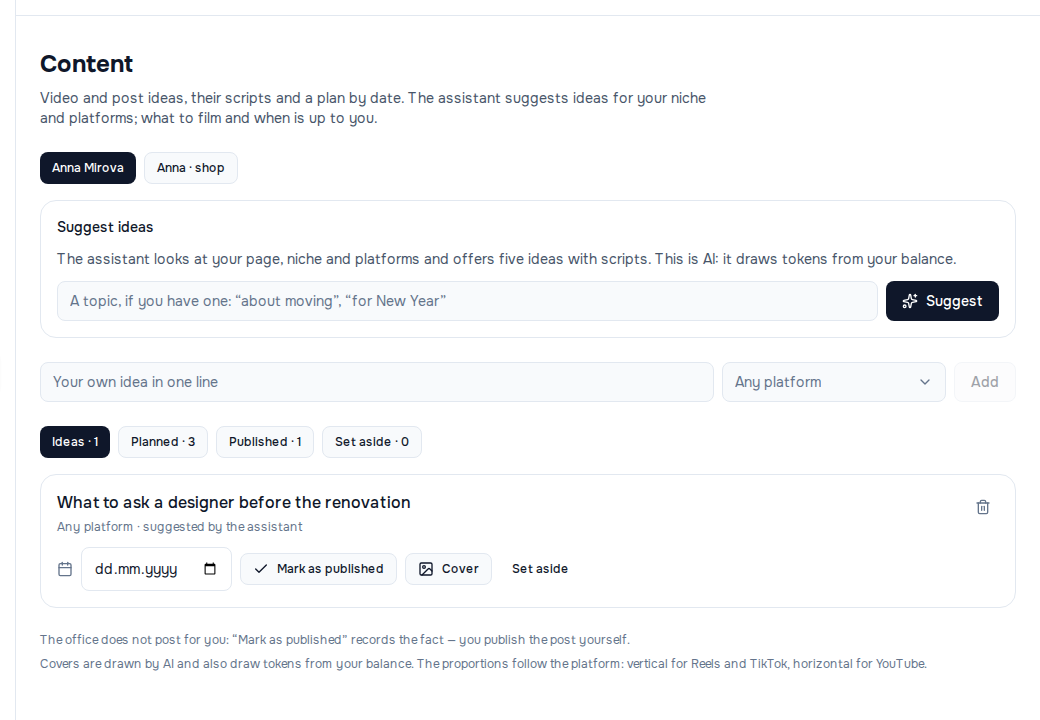
If you have several pages, first pick the one you need with the button showing its title: each page has its own list.
Write down your own idea
- Open "Content".
- Type the idea in the "Your own idea in one line" field.
- If the idea is for one platform, pick it in the "Any platform" list.
- Click "Add".
The idea appears in the "Ideas" tab.
Ask the assistant for ideas
- In the "Suggest ideas" block, enter a topic if you have one: for example, "about moving" or "for New Year". Without a topic the ideas are about your page in general.
- Click "Suggest".
Five entries marked "suggested by the assistant" appear in the "Ideas" tab. Each has a title, an opening line that keeps people watching, and a script in the "Script" field. You can edit the script right there: it saves when you leave the field.
The assistant takes into account the page title, the "About you" text, the "Niche" from your media kit, the platforms in "Social icons" and the titles of the blocks on your main page. It only assigns platforms you actually have. If the niche is empty and there are no platforms, the ideas will be generic — this is not a fault: it simply has nothing to work with.
This is AI: each batch draws tokens from your balance.
Put it in the plan
Entries are sorted into the "Ideas", "Planned", "Published" and "Set aside" tabs; next to each tab name is the number of entries.
- Pick a date in the calendar field of the entry.
- The entry moves from "Ideas" to the "Planned" tab.
Entries with a date are in date order, the nearest at the top.
Mark what went out
- Publish the post in your own app.
- In the "Content" section, click "Mark as published" on the entry — it moves to the "Published" tab.
- Paste the link to the published post into the "Link to the post" field.
Marked it by mistake — click "Back to plan". The link to the post is cleared.
Set aside or delete
- "Set aside" — the entry goes to the "Set aside" tab. A set-aside entry has no button that would return it to ideas.
- The "Delete" icon — the entry is deleted after the confirmation "Delete this entry? It cannot be restored."
A finished clip in the plan
If a clip has been cut in the "Reels" section, the "Add to content plan" button adds it to "Content" straight into the "Planned" tab. The entry gets a "Clip is ready" link — it leads to "Reels". Set the date yourself.
The same in the chat
You can simply write to the assistant: "come up with five ideas about renovation and save them". It comes up with the ideas in the conversation and saves them to "Content" so they don't get lost in the chat: up to 10 at a time, into the "Ideas" tab, marked "suggested by the assistant".
The assistant does not set a date: it does not know your filming schedule. What else it can do is in the creator's AI assistant.
If it didn't work
- "Not enough tokens on your balance." — buy more tokens or change your plan — see plans.
- "No ideas came out. Try again." — the assistant failed to answer; try again. If the message keeps coming back on the Russian WŬMÙ site, check "AI cross-border data transfer consent" in your settings: AI features do not work there without it.
- "Could not save." — the entry was not saved. A page can hold up to 1,000 entries: if there are more, delete old ones. If your role on this page is "Viewer", you cannot change the list.
- "Create a page first — ideas are made for it." — you do not have a page yet — see how to create a page.
- Your own idea has no "Script" field — the field only appears on entries that already have a script, such as the assistant's ideas.
Did this article help?
Didn't find an answer?
Our support team will help — write to us in the chat.