How to collect newsletter subscribers from your page
Updated November 22, 2026
On this page
Subscribers come from the "Subscribe form" block on your page. A person leaves an email, gets a message with a "Confirm subscription" button and appears on the list in the "Newsletter" section only after pressing it.
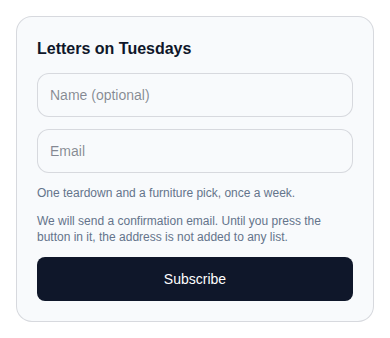
Add a subscribe form
- Open "Page" and click "Subscribe form" under the block list.
- Change the "Title" — it is shown above the form.
- If you like, fill in "Description", "What you promise to send" and "Button label". Without your own text the button says "Subscribe".
- If you want to give something for subscribing, pick it in the "Subscription gift" field — see How to give a gift for subscribing.
- Publish the page — see How to publish your page.
Block fields save themselves when you leave the field.
A visitor sees the title, the "Name (optional)" and "Email" fields, your promise and a note that the address joins the list only after confirmation. After the button is pressed, the form answers "Check your email".
People can also subscribe from the contact form. The "Offer a newsletter subscription" box in the "Contact form" block adds a checkbox under it, unchecked by default — see How to collect requests from your page. Whoever ticks it also gets a confirmation email.
Who gets onto the list
Open "Newsletter". If you have several pages, pick the one you need with the button showing its title. At the top you see how many people "Confirmed" and how many are "Awaiting confirmation". Each person on the list has a status in words: "confirmed", "awaiting confirmation" or "unsubscribed".
- Only confirmed subscribers get letters. Someone who has not pressed the button in the email stays "awaiting confirmation".
- Contact form requests and buyers are not added to the newsletter. They left an email to get a reply or what they bought. If you want to write to them, invite them to subscribe.
- You cannot add an address to the list by hand. People subscribe only themselves, through the form.
- Every letter has an unsubscribe link. Someone who unsubscribes stops getting your letters. Only they can come back: by subscribing through the form again and confirming the address.
- There is no limit on the number of subscribers. The screen shows the latest 500 entries. All confirmed subscribers are in the export — see How to export subscribers.
How much you can send for free
Above the list there is a "Free sending" bar: "Confirmed: N of 500". While there are no more than 500 confirmed subscribers, letters and automatic letters go out for free. Beyond that — the Business plan, see The Free, Pro and Business plans.
If there are more than 500 confirmed subscribers and you are not on Business, the screen shows "Your list is growing, letters are not going out":
- the subscribe form works as before, and the list keeps growing;
- new letters are not sent;
- automatic letters wait up to a week and go out once you move to Business or the number of confirmed subscribers is back to 500 or fewer. One that has waited longer is cancelled.
The "Upgrade to Business" button opens the pricing page.
If something went wrong
- The person did not get the confirmation email — ask them to check the spam folder. A repeat email to the same address goes out at most once every 15 minutes: if the form is sent again sooner, no new email comes, but the link in the first one still works.
- The visitor sees "Could not accept the request. Try again." — the email address has a typo, or the page is not published.
- A subscriber is on the list but "awaiting confirmation" — they have not pressed the button in the email yet. They get no letters until then.
- The screen says "Create a page first — the subscribe form lives on it." — you have no page yet, see How to create a creator page.
- The "Newsletter" section shows only the heading, no list — your role on this page is "Viewer". The subscriber list is visible to "Owner", "Administrator" and "Editor": it holds real people's email addresses.
Did this article help?
Didn't find an answer?
Our support team will help — write to us in the chat.