How to write and send a letter to your subscribers
Updated November 22, 2026
On this page
A letter is written in the "Newsletter" section, in the "New letter" block under the subscriber list: fill in "Subject" and "Text of the letter", choose "To" and click "Send the letter". It goes to the people who confirmed their subscription.
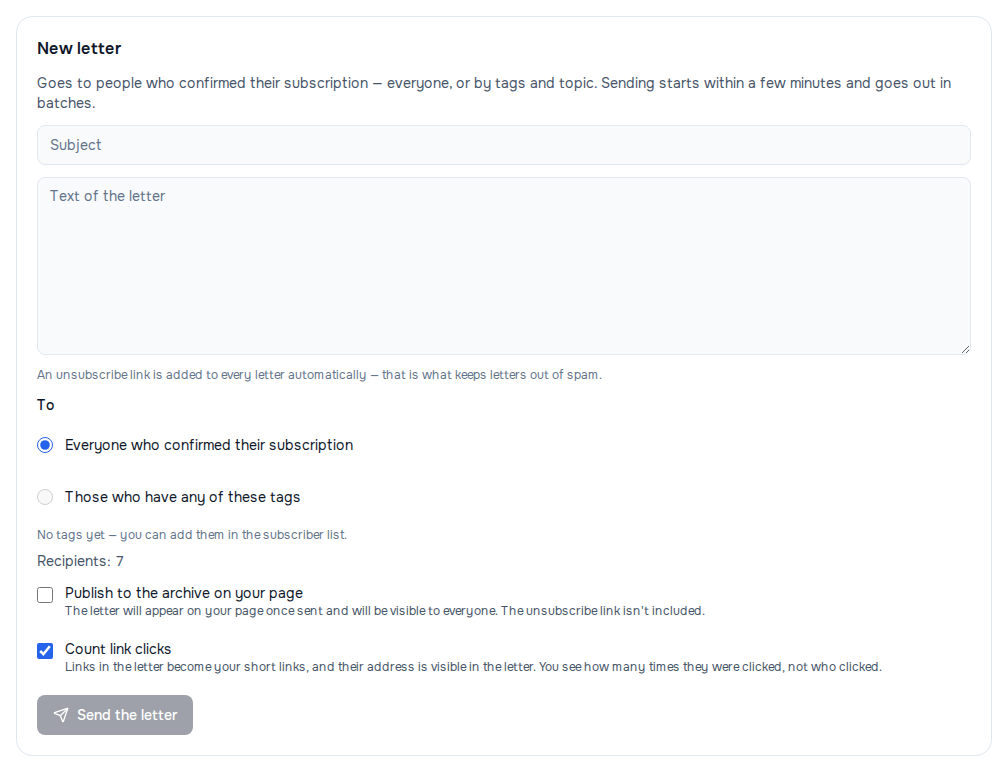
Send a letter
- Open "Newsletter". If you have several pages, pick the one you need with the button showing its title.
- In the "New letter" block, fill in "Subject" and "Text of the letter".
- Under "To", leave "Everyone who confirmed their subscription" or pick part of the list — see How to send a letter to part of your subscribers. Below you see how many people will get it: "Recipients: N".
- If you like, tick "Publish to the archive on your page" — see How to show your letters on your page. The "Count link clicks" box is ticked already — see How to see how many times links in a letter were clicked.
- Click "Send the letter" and confirm: "Send the letter? It cannot be recalled."
"The letter is queued." appears. The letter shows up in the "Sent letters" list as "queued", then "sending" and "sent". On the right you see how many went out, out of how many, and how many failed, for example "7 of 7, failed 0".
How a letter goes out
- Recipients are fixed the moment you click. Someone who subscribes later does not get this letter.
- Sending starts within a few minutes and goes out in batches. A large list does not go out at once — that is how it should be.
- A sent letter cannot be recalled.
- A letter goes out as plain text. An empty line starts a new paragraph. Formatting, images and pasted HTML do not work: the letter is built from what you typed. Addresses starting with
https://are turned into links by the mail app itself. - An unsubscribe link is added to the end of every letter automatically. It cannot be removed: it is what keeps letters out of spam. If you have set up topics, a link to choose topics appears next to it.
- Replies come to you. The letter goes out from a WŬMÙ mail address, and a reply to it arrives at the email of the page owner's account.
Free up to 500 confirmed
The "Free sending" bar above the list shows how many confirmed subscribers there are now. Up to 500, letters go out for free; beyond that — the Business plan, see The Free, Pro and Business plans.
- All confirmed subscribers of the page count, even when the letter goes to only part of the list.
- If there are more than 500 confirmed and you are not on Business, the letter is not sent: "More than 500 confirmed: sending needs the Business plan. Draft saved." appears.
- A letter you sent while there were no more than 500 confirmed reaches all its recipients, even if the list grows while it is going out.
Who can send
People with the "Owner", "Administrator" or "Editor" role on the page can write and send letters. The 500 limit follows the page owner's plan, not the plan of whoever clicked the button.
If something went wrong
- The "Send the letter" button cannot be clicked — the subject or the text is empty, the page has no confirmed subscribers, or the chosen tags give 0 recipients.
- "Nobody to send to yet: no confirmed subscribers." — wait until someone confirms their subscription.
- "The page has been blocked by the administration, so newsletters aren't sent." — see The page does not open or is blocked.
- "Could not save the letter." — try again: the text stays in the form until you reload the page.
- A letter in "Sent letters" with the status "draft" — sending did not go through, for example because of the 500 limit. A draft cannot be opened from the list for editing, so keep a copy of the text before you reload the page.
- "failed" is above zero — the address did not accept the letter, or the person unsubscribed between your click and the sending.
Did this article help?
Didn't find an answer?
Our support team will help — write to us in the chat.