How to create a discount promo code for your shop
Updated November 22, 2026
You add a promo code in the "Promo codes" section of the page editor. The buyer types it into the "Promo code" field of the shop storefront before paying, and the discount applies to the whole order.
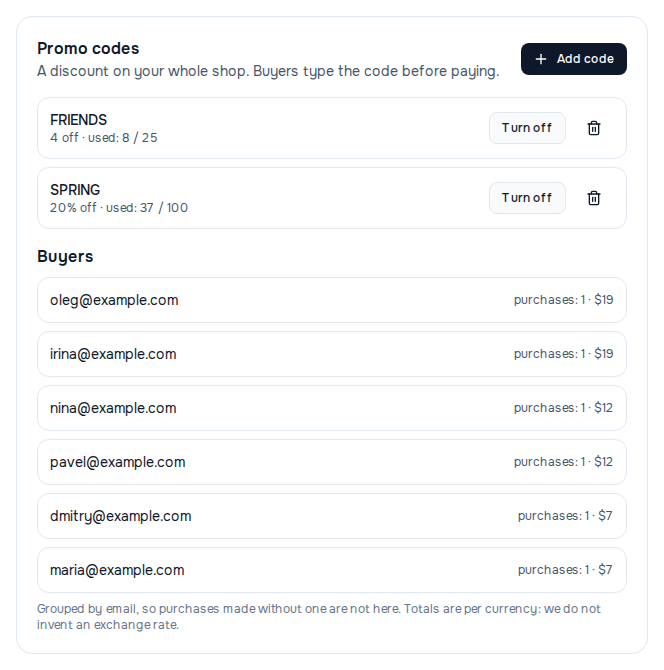
Add a code
- Open "Page" and scroll to the "Promo codes" section — it is below the shop.
- Click "Add code".
- In the "Code" field, type the code itself: 3 to 32 characters — Latin letters, digits, hyphen and underscore. Letters turn uppercase on their own.
- Under "Discount type", choose "Percent" or "Fixed amount".
- Set the discount:
- a percent — from 1 to 90;
- an amount — in the "Amount" field, with its code in the "Currency" field. The currency is filled in from your products.
- If you like, fill in "Max uses (optional)".
- Click "Save".
The code appears in the list with its discount and a "used" counter — followed by a slash and the limit, if one is set.
Turn a code off or delete it
- "Turn off" — the code stops working but stays in the list marked "off", with its counter. "Turn on" brings it back.
- Delete (the bin icon) — the code is gone for good.
How the discount works
- On the whole shop order — the order bump included. A promo code does not apply to the "Paid post" and "Digital product" blocks.
- A fixed amount works only in its own currency. A 500-yen code does not work on a product priced in dollars: we do not invent an exchange rate.
- The price never drops to zero. If the discount is bigger than the price, a small amount is left to pay — for example, $0.50.
- Uses are counted when payment goes through, not when the buyer starts checkout: an abandoned cart does not burn the code. The flip side: with simultaneous payments the limit can be exceeded by a couple.
- A code that does not work never quietly costs the buyer. If the code is off, used up or in another currency, the buyer sees "This code does not work" before paying.
If it did not work
- "Check the code and the discount" — the code is shorter than three characters or has other symbols (Cyrillic, a space), the percent is above 90, or the amount has no currency.
- "You already have a code with this name" — pick another one, or turn off and delete the old one.
- "Code limit reached" — one address can have up to 20 codes. Delete the ones you no longer need.
- The buyer sees "This code does not work" — check that the code is on, not used up and, for a fixed amount, that the product is in the same currency.
Did this article help?
Didn't find an answer?
Our support team will help — write to us in the chat.