How to sell several products through a shop
Updated November 22, 2026
On this page
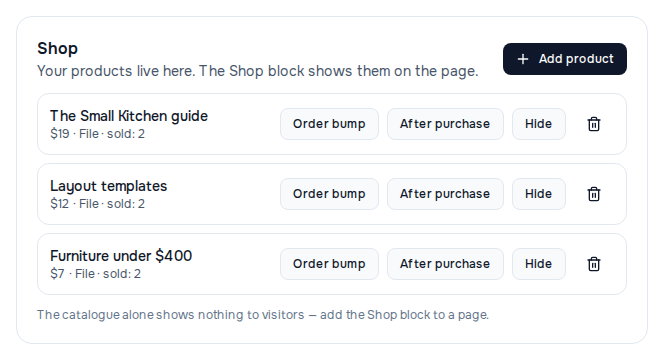
You add products in the "Shop" section of the page editor, and the "Shop" block shows them to visitors. Without the block only you can see the catalogue.
If you have just one product, a paid block is enough — see How to sell a text or a file from your page. Nothing can be bought until payments are set up — that article also explains how.
Add a product
- Open "Page" and scroll to the "Shop" section.
- Click "Add product".
- Fill in "Name", "Price" and "Currency". A new form has
USDas the currency; type your own code, for exampleEUR. - If you like, add a "Description".
- In the "What you deliver" list, choose "Text" or "File".
- Put in what people pay for: the text in the "Text the buyer gets" field or the address in the "Link to the file" field. The address starts with
https://orhttp://. - Click "Save".
The product appears in the list with its price, kind and a "sold" counter.
"Bundle" in the "What you deliver" list means several products for one price, see bundles and order bumps.
Show the products on your page
- In the "Blocks" section, click "Shop" under the block list.
- If you like, change the block's "Title" and "Description".
- Under "Display", choose "List" or "Carousel" — a strip of cards that scrolls sideways.
There is one catalogue per address: a "Shop" block on the main page and on subpages shows the same products. If there is nothing to sell — for example, every product is hidden — the block is not shown on the page.
Hide or delete a product
- "Hide" takes the product off the storefront. It can no longer be bought — not even through an old link — and buyers keep their access. In the catalogue the product is marked "hidden"; "Show" brings it back.
- Delete (the bin icon) removes the product entirely. The purchase stays in the history, but buyers have nothing to open: they see "The author has removed this material". So for a product with buyers you almost always want "Hide" — you are asked about this before deleting.
- A product in a bundle cannot be deleted: remove it from the bundle first.
Subscription gift
Instead of selling a product, you can give it to people who subscribe to your newsletter.
- When adding the product, tick "Subscription gift — not for sale". There is no price field.
- In the "Subscribe form" block, choose this product in the "Subscription gift" field.
The gift is not shown in the shop and cannot be bought. It goes to whoever subscribes through a form with this gift and confirms their address — once per address. In the catalogue the gift has a "given" counter instead of sales. A hidden gift is not given out. A product can be marked as a gift only when you add it. How to choose the gift in the form — in How to give a gift for subscribing.
What the buyer sees
A list or strip of products with an image, name, price and a "Buy" button for each. A bundle has "Includes: …" under its name. Below the products — one "Email for the access link" field for the whole shop, a "Promo code" field and the abandoned-payment reminder checkbox.
From there it works like a paid block: payment, a page with the purchase, a link emailed for 30 days — see what the buyer of a paid block sees.
In countries where money does not go through WŬMÙ, "Buy" leads to your payment page, and you grant access yourself. Promo codes, order bumps and the after-purchase offer do not work in this case.
If it did not work
- "Check the name, the price and what the buyer gets" — the name or text is empty, the price is not a number or is zero, or the file link does not start with
https://orhttp://. - "Product limit reached" — the catalogue already has 50 products. Delete the ones nobody has bought.
- "This product is part of a bundle. Remove it from the bundle first." — open "Contents" on the bundle and untick the product.
- The product is not on the page — the page has no "Shop" block, the product is hidden, it is a subscription gift, or it is a bundle that contains a hidden product.
Did this article help?
Didn't find an answer?
Our support team will help — write to us in the chat.