How to get the check mark on a creator page
Updated November 22, 2026
On this page
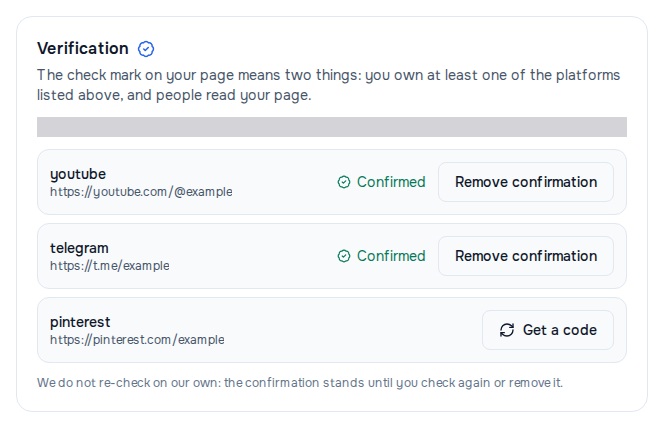
The check mark next to your name on the page appears when two conditions are met at once: at least one of your platforms is confirmed and the page has at least 1,000 views in 30 days. You confirm a platform in the "Verification" section of the "Page" editor — with a code you put into your profile description on that platform for a while.
Confirm a platform
The "Verification" section sits in the editor right under "Social icons". What gets confirmed is the profile link entered there.
- Open "Page" and make sure "Social icons" holds the link to your profile on the platform — see how to add social networks.
- In the "Verification" section, click "Get a code" next to the platform.
- Click "Copy" and paste the code anywhere in your profile description on that platform. Save the description there.
- Go back to the editor and click "Check". We open your profile on the platform and look for the code.
The result: "Confirmed" appears next to the platform. You can then remove the code from the description.
The views threshold
Under the section title you can see how many views you already have: "Views over 30 days: … of 1000 needed." Once the number is reached, the line turns green.
A confirmed platform without views does not give the check mark, and neither do views without a confirmed platform.
The check mark is recalculated when you check a platform, remove a confirmation, or change or remove a platform link. It does not appear on its own just because views have grown — see "If it didn't work".
Platforms that cannot be confirmed
Instagram, TikTok, VK, Dzen and Spotify show a profile description only to a browser that is signed in — we cannot read it and find the code. Such platforms have no button; instead it says: "This platform does not show profile descriptions to anyone but a signed-in browser, so we cannot check it."
Email and phone are not shown in the section: there is nothing to confirm for them.
Good to know
- Changing the link removes the confirmation. If you enter a different profile address in "Social icons", the platform has to be confirmed again. Otherwise, after confirming one account, you could swap in someone else's.
- We do not re-check on our own. The confirmation stands until you remove it with "Remove confirmation" — for example, if you hand the account over to someone else.
- The code in your description is harmless. It cannot be used to sign in to your account or to confirm someone else's page: it is tied to your page and to that platform.
If it didn't work
- "The code was not found in your profile description." — make sure the description is saved on the platform and that the link in "Social icons" leads to exactly this profile. Then click "Check" again.
- "The page did not respond. Try again in a few minutes." — the platform did not open. Wait and click "Check" again.
- "This address cannot be checked." — the profile link does not look like a normal address. Enter the full profile address, starting with
https://. - There is no "Verification" section — "Social icons" has no platform link. If you have just added one, refresh the editor page.
- "Could not complete the check." — the check did not start. If your role on this page is "Viewer", only someone who edits the page can confirm platforms.
- The platform says "Confirmed", there are more than 1,000 views, but no check mark — the platform was confirmed before the views came in, and the check mark is not recalculated by itself. Click "Remove confirmation", then "Get a code", and confirm the platform again with the new code.
Did this article help?
Didn't find an answer?
Our support team will help — write to us in the chat.