Roster summary — numbers for the whole roster on one screen
Թարմացվել է՝ 24 նոյեմբերի, 2026 թ.
Այս հոդվածը դեռ թարգմանված չէ ձեր լեզվով. ցուցադրվում է անգլերեն։
Այս էջում
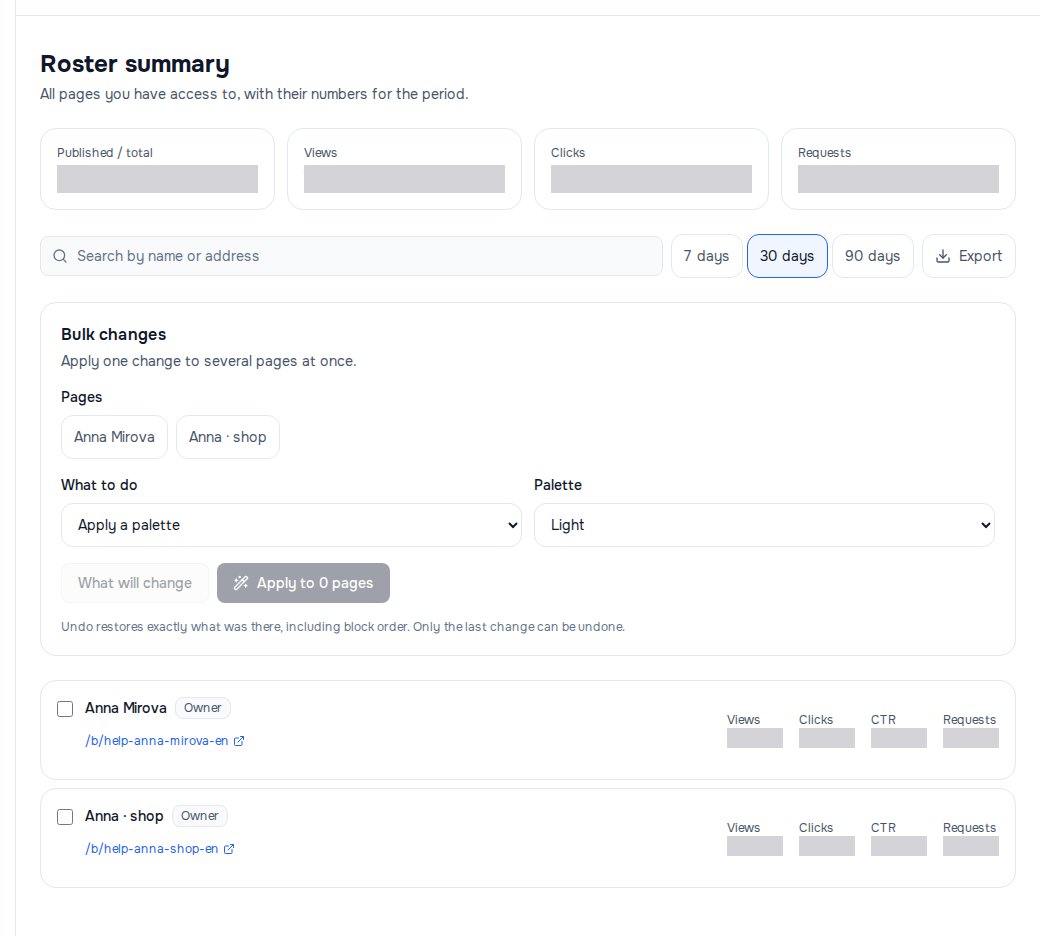
Numbers for every page you have access to are at the very top of "Pages & access", in "Roster summary". Pick the period with "7 days", "30 days" or "90 days" and the numbers are recalculated.
What the summary shows
At the top are four totals across all pages: "Published / total", "Views", "Clicks", "Requests".
Below is a row per page:
- the page title, your role on it, and a "Draft" tag if the page is not published;
- the page address — click it to open the page in a new tab;
- "Views", "Clicks", "CTR" and "Requests" for the chosen period.
Pages are listed in the order they were created.
How the numbers are counted:
- Views — visitors opening the page; the same visitor again within a minute is not counted.
- Clicks — clicks on links with a short address from "Links". A link without a short address works but is not counted as a click, see How to make a short link. Clicks from newsletter letters are not included.
- CTR — clicks divided by views, as a percentage.
- Requests — how many leads were left during the period. Where you are a "Viewer" there is "—" instead of a number, and those pages do not count towards the total: a viewer does not see leads.
Detailed statistics for one page are in "Statistics", see How to read page statistics.
Find a page
Type a name or address into "Search by name or address" — the list narrows to matching pages. The totals at the top do not change: they always cover the whole roster.
Export the summary to a file
Click "Export". A CSV table for the chosen period is downloaded — open it in Excel or Google Sheets.
The column names in the file are: handle — the address, title — the title, published — published (1) or not (0), role — your role (owner, admin, editor, viewer), views, clicks, ctr, leads — the same numbers as on screen, and blocks — how many blocks the page has. On pages where you are a viewer, leads is empty.
Leave a page
If you no longer run someone else's page:
- Click "Leave" in its row.
- Confirm.
You will see "You have left the page." and the page disappears from your roster. It stays with its owner with all its content — you simply stop being a member. Only the page owner or an administrator can give you access again by inviting you.
Your own pages have no "Leave" button. To give your own page to someone else, use a transfer link, see How to set up a page for a creator.
If something went wrong
- "Could not load the roster." — reload the page.
- "No pages yet. Yours and the ones shared with you will appear here." — you have neither a page of your own nor access to anyone else's. See How to set up a page for a creator or get access to theirs.
- "Nothing matches the search." — clear the search field.
- "Requests" shows "—" — your role on this page is "Viewer".
- "Clicks" are zero although people click links on the page — the links have no short address. Block clicks are shown in the page statistics on the "Blocks" tab, see Block statistics.
- "Could not leave the page." — reload the screen: you may already have been removed from the page.
Հոդվածն օգնե՞ց։
Չե՞ք գտել պատասխանը
Մեր աջակցության թիմը կօգնի՝ գրեք մեզ չաթում։