How to publish a creator page or schedule it
업데이트: 2026년 11월 20일
이 문서는 아직 회원님의 언어로 번역되지 않아 영어로 표시됩니다.
A page becomes visible with the "Publish" button in the top card of the "Page" editor, next to its name and address. Until then visitors at your address see "Page unavailable", and search engines do not get the draft.
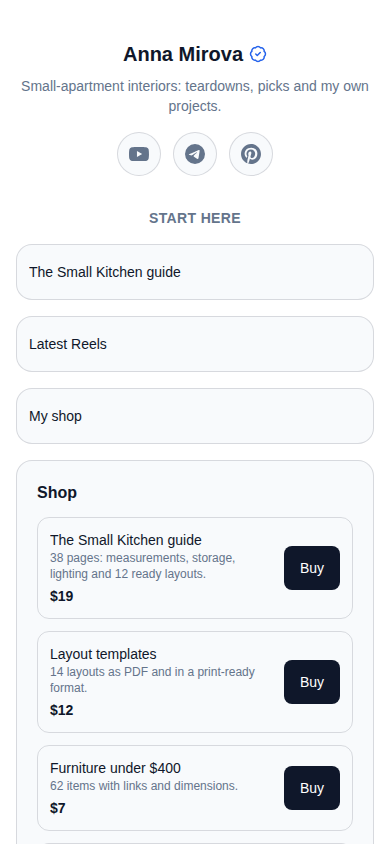
Publish now
- Open "Page".
- In the top card click "Publish".
The button changes to "Unpublish" — this means the page is open. Check it: click the address under the page name, and the page opens in a new tab.
The page can be published by its owner, an administrator and an editor. A viewer cannot. The assistant does not publish either — that is your decision.
Sub-pages are published separately — see Several pages at one address.
Unpublish
Click "Unpublish". The page and all its sub-pages close, but nothing is deleted: publish again and everything comes back.
Schedule the release
Handy when an announcement is tied to a particular hour.
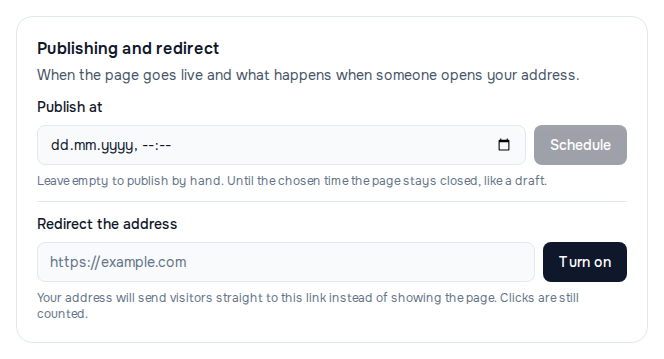
- Scroll down to the "Publishing and redirect" section.
- In the "Publish at" field choose a date and time.
- Click "Schedule".
- Click "Publish" in the top card.
Under the field you will see "Goes live on … Until then the page is closed and not indexed." Until that hour visitors see "Page unavailable", and in "My pages" it shows "waiting for its time". At the set moment the page opens by itself.
The time is taken from your device's clock.
To remove the schedule, click "Cancel" next to the field: a published page opens at once, a draft stays a draft.
If it did not work
- The "Publish" button does not work and the editor shows a red "This page has been blocked by the administration" notice — see The page does not open or is blocked.
- "Could not save the change." when you click "Publish" — if you were invited to the page as a viewer, you cannot change or publish it. Ask the owner.
- Published, but the address shows "Page unavailable" — check whether a release time in the future is set; more in The page does not open or is blocked.