How to fill a creator page with blocks, links and social icons
อัปเดตเมื่อ 20 พฤศจิกายน 2569
บทความนี้ยังไม่ได้แปลเป็นภาษาของคุณ — แสดงเป็นภาษาอังกฤษ
ในหน้านี้
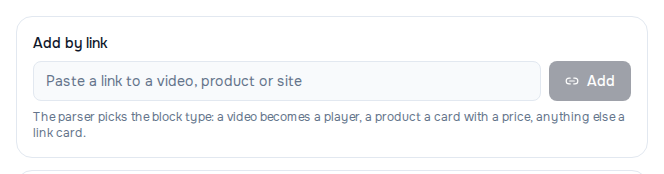
A page is built from blocks in the "Blocks" section of the "Page" editor. The fastest way is to paste a link into "Add by link" and click "Add": the kind of block is chosen for you.
Add a block
By link. Paste the address of a video, product or site into "Add by link" and click "Add". A video becomes a player, a product a card with a price, anything else a link card.
By button. Under the list of blocks there are buttons with the names of all block kinds — click one and an empty block appears at the end of the list. The main ones:
| Block | What it is |
|---|---|
| "Profile header" | name, tagline and a photo or cover |
| "Social icons" | a row of icons of your platforms |
| "Link" | a card with a title, address and image |
| "Section heading" | splits links into groups |
| "Contact form" | a visitor leaves their contact, you see it in "Leads" |
| "Photo gallery" | photos swiped sideways |
| "Video & music" | a player for a video or a track |
The other blocks — products, shop, tips, membership, newsletter, booking — sell and grow your audience; they are set up the same way.
A page can have only one "Profile header" and one "Social icons" block.
Fill in a block
Block fields save themselves when you leave the field. The top of the editor shows what is happening: "Saving…", "Saved" or "Not saved".
Made a mistake — click "Undo the edit" (the back arrow at the top of the editor); "Redo the edit" brings back what you undid. Undo works for edits inside blocks.
An image can be uploaded with the "Upload" button or pasted as a link: JPG, PNG, WebP or HEIC up to 10 MB.
In the "Profile header" block:
- "Display name" and "Tagline" are what a visitor sees first;
- "Header style": "Avatar" is a round photo above the name, "Cover" a wide photo across the page, "Full width" a tall photo to the edges of the page with the name over it.
Write a couple of lines about yourself in the "About you" field in the top card of the editor — up to 500 characters.
Add social accounts
- Scroll the editor down to the "Social icons" section.
- Paste your profile address into the row of the platform. It saves when you leave the field.
- If the platform is not in the list, pick it in "Add a platform". Discord, Boosty, ticketing services, payment links, a website, email and phone are there too.
To remove an icon, clear the field.
The icons appear under the page header. To place them elsewhere, add the "Social icons" block — the row will then stand where the block is and will not repeat under the header.
Reorder blocks
- Drag a block by the handle to the left of its name — faster with a mouse.
- The "Move up" and "Move down" buttons in the corner of the block — they work from the keyboard and are more reliable on a phone.
Both give the same result and save right away.
How it looks
On a wide screen a preview stands to the right of the settings: this is what a visitor will see. Click a block in the preview to open its settings. On a narrow screen there is no preview — open the page via the link in the address line above the editor.
Delete a block
Click "Delete block" (the bin in the corner of the block).
If it did not work
- "Not saved" at the top of the editor — the edit did not get through. Check your connection and repeat; the text you typed stays in the field.
- "Could not add the block." — most often you are adding a second "Profile header" or a second "Social icons": a page can have only one of each.
- "This link could not be parsed." or "The page did not open — check the address." — add a "Link" block by button and fill it in by hand.
บทความนี้มีประโยชน์หรือไม่
ไม่พบคำตอบใช่ไหม
ทีมสนับสนุนของเรายินดีช่วยเหลือ — เขียนถึงเราในแชต