How to collect requests from your page and reply to them
อัปเดตเมื่อ 20 พฤศจิกายน 2569
บทความนี้ยังไม่ได้แปลเป็นภาษาของคุณ — แสดงเป็นภาษาอังกฤษ
ในหน้านี้
Requests come from the "Contact form" block on your page: a visitor leaves a name, an email and a message, and you see them in the "Leads" section.
Start collecting requests
- Open "Page" and click "Contact form" under the block list.
- If you like, change the "Title", "Description" and "Button label".
- Publish the page — see How to publish your page.
The form asks for a name, an email and a message. To send a request, a visitor only needs to fill in the email or the message.
The "Offer a newsletter subscription" box adds a checkbox under the form, unchecked by default. Whoever ticks it gets an email to confirm the subscription.
Work through requests
Open "Leads". If you have several pages, pick the one you need with the button showing its title. The newest requests are at the top.
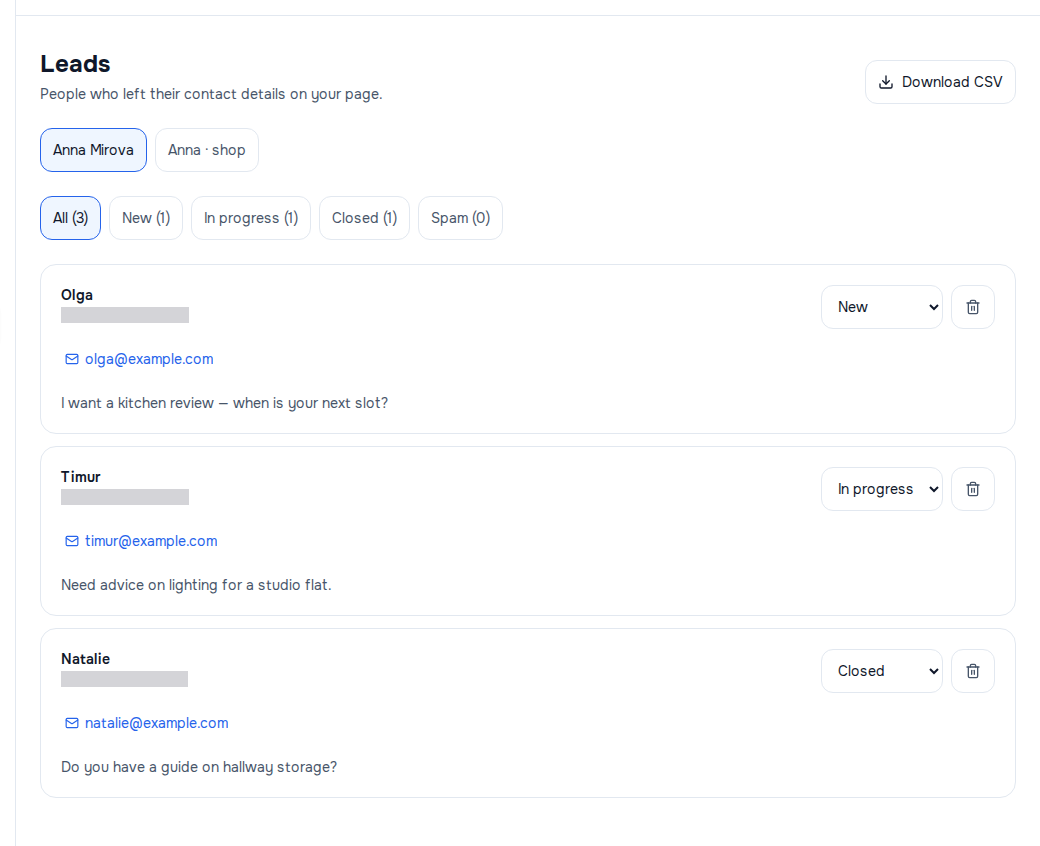
Each request shows the name (or "No name"), the date and time, the email, the phone and the message. Tapping the email opens your mail app; tapping the phone starts a call.
A new request arrives with the status "New". Change it in the "Status" list:
| Status | When to set it |
|---|---|
| "In progress" | you replied and are waiting for an answer |
| "Closed" | the matter is settled |
| "Spam" | the request is junk |
The buttons above the list — "All", "New", "In progress", "Closed", "Spam" — show the requests of one status and how many there are. The list shows 50 requests at a time; "Show more" brings the rest.
Statuses are for you: the visitor does not see them and gets no email when a status changes. You reply yourself — by the email or phone in the request. WŬMÙ does not write to visitors on your behalf.
The new-request email
For every new request, an email goes to the account email of the page owner: "New lead from …" with an "Open leads" button. The visitor's contact details are not in the email — they are only in the "Leads" section. That way other people's emails and phone numbers do not spread through forwards and mailboxes.
If a single page gets more than a hundred requests in a day, some of them come without an email. All the requests themselves are saved.
Who sees requests
People with the "Owner", "Administrator" or "Editor" role on the page see and handle requests. A "Viewer" does not see them: looking at a page and seeing real people's contact details are different rights.
If it didn't work
- No requests even though the form is on the page — check that the page is published: an unpublished or blocked page does not accept requests.
- An email arrived but the list is empty — click "All" and, if you have several pages, pick the page named in the email.
- "Could not load requests." — reload the page. If your role is "Viewer", requests will not open for you — that is not an error. If it keeps happening with another role, contact support.
- A visitor sees "Could not send the message. Please try again." — they filled in neither the email nor the message, or mistyped the email address.
บทความนี้มีประโยชน์หรือไม่
ไม่พบคำตอบใช่ไหม
ทีมสนับสนุนของเรายินดีช่วยเหลือ — เขียนถึงเราในแชต