How to take consultation bookings from your page
Updated November 22, 2026
On this page
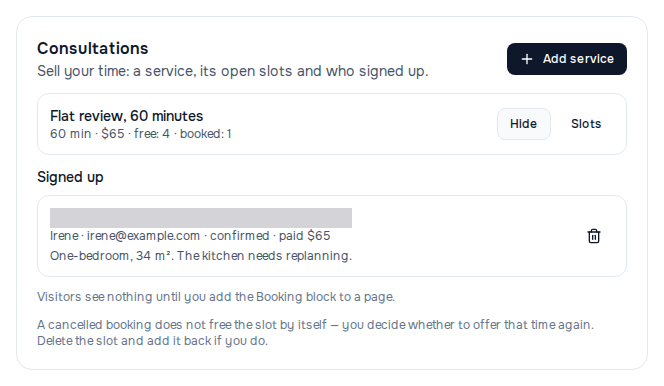
You sell your time in the "Page" editor, in the "Consultations" section: create a service, add open slots to it and put the "Booking" block on your page. A visitor picks a time, leaves a name and an email and, if payments are set up, pays straight away.
Create a service
- Open "Page" and find the "Consultations" section.
- Click "Add service".
- Fill in "Name", "Duration, minutes", "Price" and "Currency" — a three-letter code, for example
USD. "Description" is optional. - Click "Save".
The service appears in the list: its duration, price, how many slots are free and how many are booked. You can have up to ten services, each lasting from 5 minutes to a full day.
Add open slots
- In the service's row, click "Slots".
- In "Date and time", choose when the session starts.
- Click "Add slot". Repeat to add another one.
You enter the time as yours, and a visitor sees it in their own time zone. A slot in the past is not added. One service can have up to 200 slots.
Show booking on your page
- Under the block list, click "Booking".
- Publish the page — see How to publish your page.
Until the page has a "Booking" block, visitors do not see your services. The block shows only services with open slots in the future: if there are none, the block is not visible on the page.
To take a service off the page for a while, click "Hide" in its row; "Show" brings it back.
How a visitor books
- They pick a time for the service they want.
- They enter "Your name" and their email and, if they like, what they want to discuss.
- They click "Book".
What happens next depends on how your payments work — see payments.
- Through WŬMÙ. The person pays by card straight away — including Apple Pay or Google Pay if their device has them. After paying they come back to your page and see "Payment received": the booking will be confirmed once the payment is processed, and you will contact them by email.
- In Russia and Belarus. The time is held for the person, and they see: "The slot is held. Payment goes directly to the author — they will contact you." You agree on payment yourselves.
The slot goes to whoever books first. If someone took the time while the person was filling in the form, they see "Someone took this slot while you were filling the form. Pick another time." If the person went to pay and did not, the slot is freed after about half an hour.
Who signed up
The "Signed up" list is under the services in the same section. Each row has the date and time, the service, the person's name and email, the status and the payment: "paid …" or "payment outside the platform". If the person wrote what they want to discuss, it is here too.
| Status | What it means |
|---|---|
| "awaiting" | the booking is waiting for payment or, in Russia and Belarus, for your confirmation |
| "confirmed" | the payment went through or you confirmed the booking yourself |
| "disputed with the bank" | the person disputed the payment — see refunds and disputes |
- "Confirm" — confirms the booking. In Russia and Belarus, click it once you have agreed with the person.
- The "Cancel booking" icon — cancels the booking. A cancelled booking disappears from the list.
WŬMÙ sends no emails about a new booking — neither to you nor to the person. Contact them yourself at the email in the list. You can set up an automatic "After a booking is confirmed" letter in your newsletter: it goes out only if the person is a confirmed subscriber.
The page owner, admins and editors see bookings and people's emails.
If it didn't work
- "Check the name and the price" — the name or the price is empty.
- "Could not save" — check the duration (from 5 minutes to a full day) and the currency code; a slot in the past will not save either. Another reason is a limit: ten services or 200 slots for one service.
- The "Booking" block is not visible on the page — there is no service with open slots in the future, the service is hidden or the page is not published.
- A visitor sees "The author has not set up payments yet." — payments are not ready. See payments.
Did this article help?
Didn't find an answer?
Our support team will help — write to us in the chat.