How to accept a creator's placement and read the campaign report
Diperbarui 24 November 2026
Artikel ini belum diterjemahkan ke bahasa Anda — ditampilkan dalam bahasa Inggris.
Di halaman ini
Once a creator has posted, a "Placement" link appears in their application: open it, check the post and click "Mark as done". The "Report" button on the campaign card sums up all creators of the campaign.
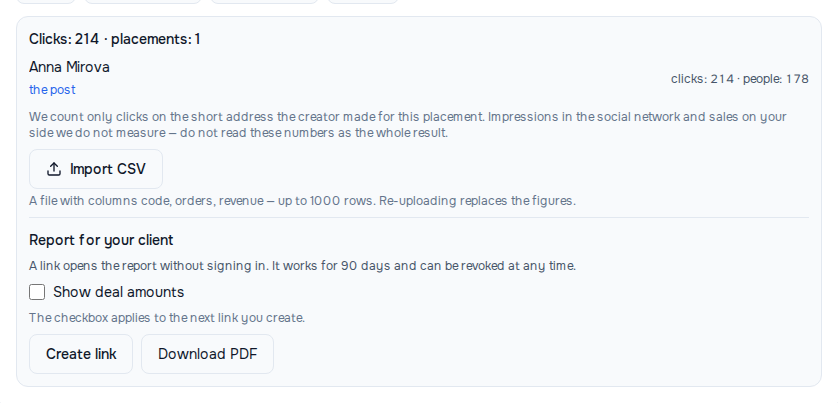
The screen is "My campaigns" in the blogger office (the "For brands" mode, switched on the "Dashboard" in the "Who you are here" block) or "Creators" in the marketing office.
Check the placement
- Open "My campaigns" and click "Applications" on the campaign card.
- Find the creator with the "Selected" status. If they reported a post, their application has a "Placement" link — it opens in a new tab.
- Check the post: is it what you agreed on, does it carry your link, the promo code and the ad label if one is needed.
If the creator chose the newsletter format, the status reads "Selected · Newsletter letter". Such an application has no "Placement" link: the letter goes to the creator's subscribers, and the report shows the number of letters sent.
In a campaign with draft approval, the creator can attach the link only after you approve the draft, see how to review a creator's draft. How the creator reports on their side: How to report a campaign placement.
Mark as done
When the placement is fine, click "Mark as done". The application status becomes "Done".
- This cannot be undone: a "Done" application moves nowhere else.
- The "Placement deadline" line disappears from the application, and the creator gets no more reminders.
- The creator can no longer replace the post link but can still enter the placement figures.
- The creator's history gains one in "Deals completed" — every brand they apply to sees it, see how to pick creators from the applications.
Deal terms and payment marks keep working on a done application, see How to record the deal terms with a creator.
The campaign report
Click "Report" on the campaign card. Clicking again shows "Hide report".
At the top is the total: "Clicks: … · placements: …". Placements here are the creators who attached a post link. If figures were entered, the "Creator's figures" and "Brand's figures" totals follow.
Then comes one row per selected or done creator:
- the page name and "the post" link, or "no post link yet" until there is one;
- "Placement deadline passed: …", if the deadline is over and nothing was posted;
- "clicks: … · people: …" — clicks on the creator's short address and how many different people clicked;
- "letters sent: …" — for a newsletter placement;
- "Creator's figures: reach: … · views: … · engagement: …" and "Brand's figures: orders: … · revenue: …", if entered.
Creators you have not selected yet, or rejected, are not in the report. If nobody is selected, it says "Nobody has been selected for this campaign yet."
Below the rows are "Import CSV" for promo code sales, see promo codes and sales, and the "Report for your client" block with a link and a PDF, see the report for your client. Deal amounts are not shown in this view — they are in the PDF.
What the figures mean
Every figure has its own source, and they never add up with each other:
- We count clicks and letters. A click is an opening of the short address the creator made for your link. "People" is the number of different network addresses: one person on a phone and a laptop counts twice, an office behind one shared address counts once.
- "Creator's figures" — reach, views and engagement from the platform's statistics. The creator enters them after attaching the link and can edit them while the campaign is open and for 30 days after it closes. You cannot edit them — check them against the post link.
- "Brand's figures" — orders and revenue by the creator's promo code. You enter them; the creator neither sees nor edits them.
What we do not count: impressions, reach and views in the social network (beyond what the creator entered), sales and leads on your website. The report always ends with: "We count only clicks on the short address the creator made for this placement. Impressions in the social network and sales on your side we do not measure — do not read these numbers as the whole result."
"clicks are not counted" on a row is not zero but no count at all: the creator has not posted anything yet, or attached the post link without your link, so there is no short address. While the application is "Selected", send the creator the link to put in their post and ask them to add it to their placement report — the short address is created automatically. After "Mark as done", tracking can no longer be added.
When to close the campaign
When the slots are filled and you need no more applications, click "Close" on the campaign card. The campaign leaves the creators' showcase, while the applications, the deal terms and the report stay. Selected creators still see the closed campaign and can enter figures in it for 30 days after closing. More in How to create a campaign for creators.
If something went wrong
- No "Mark as done" button — the application is not "Selected": it is still new, already done or rejected.
- You need to drop a selected creator — on this screen a selected application only has "Mark as done". Sort it out with the creator in a conversation, and do not mark such an application as done.
- "Could not save the change." — the application status has already changed, for example in another tab. Reload the page and check the status.
- "Could not load campaigns." — the applications or the report did not load. Reload the page and click the button again.
- No "Placement" link although the creator says the post is out — they have not reported it in WŬMÙ yet, they placed a newsletter letter, or the campaign requires draft approval and the draft is not approved.
- A newsletter creator shows "no post link yet" — a letter has no post link; look at "letters sent: …" in the same row. Such creators are not included in "placements" in the total.
- Zero clicks although the post is out — the post carries your original link instead of the creator's short address, or the creator's page is unpublished: short addresses only work while it is published.
Apakah artikel ini membantu?
Tidak menemukan jawaban?
Tim dukungan kami siap membantu — tulis kepada kami di obrolan.